Crafting compelling storyboards shouldn’t be limited by your computer’s specs. This guide offers practical strategies for creating professional-looking storyboards even on a low-powered machine. We’ll explore software choices, efficient workflow techniques, and smart image handling to maximize your creative output without compromising your system’s performance.
From selecting the right software and optimizing its settings to mastering efficient file management and image compression, we’ll equip you with the knowledge to overcome common limitations. Learn how to streamline your workflow, simplify your designs, and leverage readily available resources to bring your storyboard visions to life, regardless of your hardware constraints.
Software Selection for Low-Spec Machines
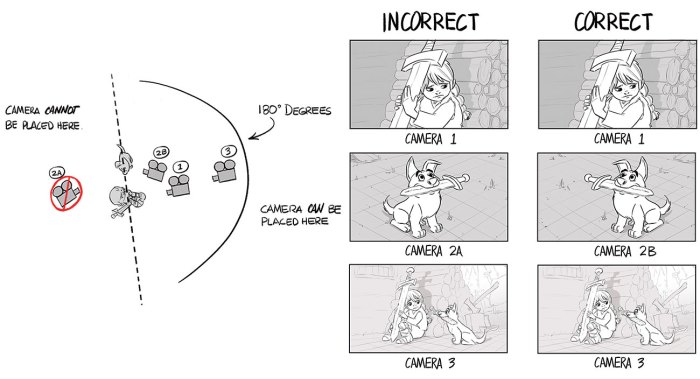
Choosing the right storyboarding software is crucial, especially when working with a low-spec computer. The wrong choice can lead to frustrating lag, crashes, and ultimately, a hampered creative process. This section will guide you through selecting and optimizing software for optimal performance on less powerful machines.
Selecting software for a low-spec computer requires careful consideration of system requirements and the trade-off between features and performance. Lightweight applications are key to avoiding performance issues. Vector-based programs generally offer better performance than raster-based options for complex projects due to their scalable nature.
Comparison of Storyboarding Software for Low-Spec Computers
The following table compares free and affordable storyboarding software suitable for low-spec computers. Remember that actual performance can vary depending on your specific hardware configuration.
| Software | System Requirements (Approximate) | Key Features | Pricing |
|---|---|---|---|
| Storyboarder (Free, Open Source) | Low to mid-range; Runs well on older machines. Specific requirements vary by version. | Simple interface, intuitive workflow, collaboration features. Primarily focused on storyboarding functionality. | Free |
| OpenToonz (Free, Open Source) | Moderate; Requires more resources than Storyboarder but still usable on many older machines. | Powerful 2D animation software with storyboarding capabilities. Offers more advanced features but with a steeper learning curve. | Free |
| Pencil2D (Free, Open Source) | Very low; Designed for low-resource machines. | Simple drawing tools, frame-by-frame animation, suitable for basic storyboarding. | Free |
| Krita (Free, Open Source) | Low to moderate; A more versatile digital painting program that can be adapted for storyboarding. | Powerful painting and drawing tools, layer support, various brush options. May require more system resources than dedicated storyboarding software. | Free |
Vector vs. Raster Software for Low-Spec Machines
Vector-based software uses mathematical equations to define images, meaning the image quality remains crisp regardless of scaling. Raster-based software uses pixels, and scaling up can lead to pixelation and blurriness. For storyboarding on low-resource machines, vector-based software generally offers superior performance, particularly when working with complex scenes or many layers. While raster software might offer more realistic-looking artwork, the performance benefits of vector software often outweigh the aesthetic trade-offs for low-spec machines.
Optimizing Software Settings for Low-Spec Computers
Optimizing your chosen software’s settings is crucial for smooth performance. The following steps can significantly improve your workflow:
- Reduce Canvas Resolution: Working at a lower resolution (e.g., 720p instead of 1080p or higher) significantly reduces the processing load. You can always upscale later.
- Limit Layers: Excessive layers can slow down performance, especially in raster-based software. Organize your work efficiently and avoid unnecessary layers.
- Minimize Effects and Filters: Avoid using computationally intensive effects and filters, as these can strain your system. Keep your workflow streamlined.
- Close Unnecessary Programs: Running multiple applications simultaneously can consume system resources. Close any programs you are not actively using while storyboarding.
- Regularly Save Your Work: Frequent autosaving can prevent data loss in the event of a crash, but it also puts a small load on the system. Adjust the auto-save frequency according to your system’s capabilities.
- Consider Using a Smaller File Format: Some image formats are larger than others. Consider using smaller file formats when exporting images or saving your work, balancing file size and image quality.
Efficient Workflow Techniques
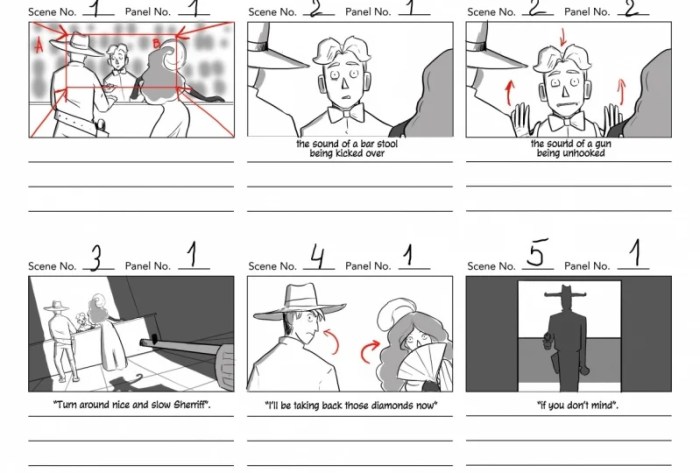
Optimizing your workflow is crucial when working with limited computing resources. By implementing efficient file management, design simplification, and keyboard shortcuts, you can significantly reduce the strain on your low-spec computer while maintaining a productive storyboarding process. This section will Artikel several key strategies to achieve this.
Effective file management and design simplification are paramount for maintaining a smooth workflow on a low-spec machine. Minimizing file sizes and streamlining your design approach will directly impact your computer’s performance and prevent frustrating slowdowns.
File Size Management and Project Organization
Proper organization and file size management are essential for preventing performance bottlenecks. A well-structured project will allow for easier navigation and prevent your computer from struggling to access numerous files simultaneously. The following practices will help you manage your project efficiently.
- Use lossy compression for images: Employ formats like JPEG for images, accepting a slight loss of quality in exchange for significantly smaller file sizes. This is particularly beneficial for background images or less crucial visual details.
- Optimize image resolution: Avoid excessively high resolutions. Scale your images to the appropriate size for your storyboard panels; there’s no need to work with unnecessarily large files.
- Create a clear folder structure: Organize your project into folders for different scenes, characters, and assets. This prevents the software from having to search through a large number of files in a single directory.
- Regularly back up your work: This protects your project from data loss, and allows you to work from a clean copy, potentially reducing file clutter.
- Delete unnecessary files: Regularly purge temporary files, unused assets, and older versions of your storyboard panels to maintain a lean project folder.
Storyboard Design Simplification
Simplifying your storyboard designs can significantly reduce the processing demands on your computer. This doesn’t mean sacrificing visual clarity; instead, it involves adopting efficient design strategies that prioritize visual communication over unnecessary detail.
- Limit the number of colors: Using a limited palette reduces the file size and processing power required to render the image. Consider using a monochromatic scheme or a palette with only a few key colors.
- Use simple shapes and lines: Instead of complex illustrations, opt for simple shapes and lines to convey your ideas. A stick figure can often communicate as effectively as a detailed character rendering.
- Employ flat design principles: Flat design, characterized by its minimalist aesthetic and lack of gradients or textures, is highly efficient in terms of processing power. It allows for faster rendering times and smaller file sizes.
- Prioritize clear composition: A well-composed storyboard panel is easier to understand and requires less visual information to convey the scene’s key elements. Focus on clear focal points and avoid visual clutter.
Keyboard Shortcuts and Automation
Leveraging keyboard shortcuts and automation features significantly streamlines your workflow and reduces the need for repetitive mouse actions, leading to increased efficiency and reduced strain on your system.
- Learn essential keyboard shortcuts: Familiarize yourself with the keyboard shortcuts for common actions such as creating new panels, selecting tools, saving your work, and zooming. This will dramatically speed up your workflow.
- Utilize copy and paste functions: If you have recurring elements in your storyboard, use the copy and paste functions to avoid redrawing them repeatedly. This saves time and reduces the computational load.
- Explore scripting or automation tools (if available): Some software packages offer scripting capabilities or automation tools that allow you to automate repetitive tasks. Investigate these options to further optimize your workflow.
Optimizing Image and Asset Handling
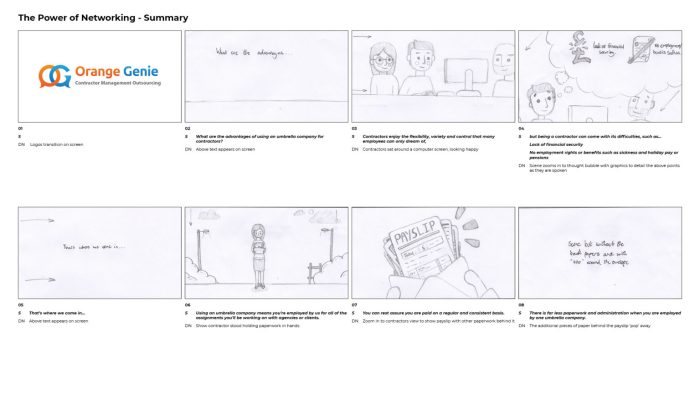
Efficiently managing images and assets is crucial for smooth storyboard creation on a low-spec computer. Minimizing file sizes without sacrificing visual quality is key to preventing performance bottlenecks and ensuring a responsive workflow. This section Artikels strategies for achieving this balance.
Creating and importing low-resolution images that maintain visual quality while minimizing file size requires careful consideration of image formats and compression techniques. Using appropriate techniques will ensure your storyboards are visually appealing without impacting your computer’s performance.
Image Formats and Compression
Choosing the right image format significantly impacts file size. JPEG is generally preferred for photographic images due to its good compression ratio, resulting in smaller file sizes. However, JPEG is a lossy format, meaning some image data is discarded during compression. This is usually acceptable for storyboards where perfect image fidelity isn’t paramount. For images with sharp lines and text, PNG is a better choice, as it’s a lossless format preserving image detail, though resulting in larger file sizes. Consider using PNG for icons or text-heavy elements within your storyboards. When saving images, utilize the highest quality settings possible within the chosen format while still maintaining a manageable file size. Experiment with compression levels to find the optimal balance between quality and file size. For example, a JPEG image saved at 80% quality might be indistinguishable from a 100% quality image, but with a considerably smaller file size.
External Asset Management
Storing storyboard assets externally frees up valuable local storage space, improving your computer’s performance. Cloud storage services like Google Drive, Dropbox, or OneDrive provide convenient solutions for storing and accessing your images and other storyboard elements. Organizing your assets within folders using a clear naming convention is crucial for efficient retrieval. For instance, you might create folders for each scene or character. This method ensures that your local drive remains clutter-free, preventing slowdowns associated with excessive file storage. The cloud-based storage solution provides access to your assets from various devices, enabling flexibility in your workflow. Regularly backing up your project to the cloud minimizes the risk of data loss.
Using Placeholder Images
Employing placeholder images during the initial storyboard creation phase is a highly effective strategy for low-spec machines. Placeholder images can be low-resolution versions of your final images, simple shapes, or even text descriptions. This allows you to focus on the narrative structure and composition without the performance burden of high-resolution assets. Once your storyboard’s layout is finalized, replace the placeholders with high-resolution images. This approach allows for a smooth and efficient workflow, preventing interruptions due to slow rendering or processing times. For example, you might initially use small, blurry squares as placeholders for character illustrations, replacing them with higher-quality artwork only after the storyboard’s layout is approved.
Final Summary
By implementing these four tips – choosing appropriate software, optimizing your workflow, managing images effectively, and leveraging external storage – you can confidently create impressive storyboards even with a low-spec computer. Remember that resourcefulness and strategic planning are key to success in any creative endeavor. Embrace the challenge and let your creativity shine through!