Creating a compelling storyboard collaboratively online requires careful planning and execution. This guide offers five key strategies to streamline the process, ensuring effective communication, efficient workflow, and a polished final product. We’ll explore the best tools, techniques for conflict resolution, and methods for maintaining version control, transforming the potential chaos of multiple contributors into a seamless creative endeavor.
From selecting the ideal online platform to implementing effective communication strategies, we’ll delve into the practical aspects of collaborative storyboarding. Learn how to optimize your visuals for online viewing, leverage annotation tools for clear feedback, and avoid common pitfalls that can hinder progress. This guide empowers teams to harness the power of online collaboration for creating exceptional storyboards.
Choosing the Right Online Collaboration Tool
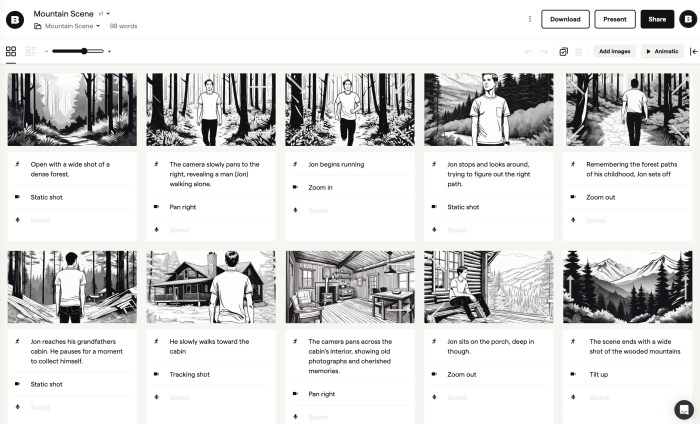
Selecting the appropriate online collaboration tool is crucial for a smooth and efficient storyboard creation process. The right platform will streamline communication, facilitate feedback, and ultimately improve the quality of your final storyboard. Several factors, including pricing, user interface, and integration capabilities, should be considered when making your choice.
Comparison of Online Storyboard Platforms
Three popular online storyboard platforms – Miro, Storyboarder, and Figma – offer distinct features and collaborative capabilities. Understanding their strengths and weaknesses will help you determine which best suits your needs and budget.
| Feature | Miro | Storyboarder | Figma |
|---|---|---|---|
| Pricing | Offers free and paid plans with varying features and user limits. Paid plans typically include increased storage and advanced collaboration features. | Primarily a free, open-source tool. Limited paid options may be available through third-party providers for enhanced features. | Offers free and paid plans with varying features and user limits. Paid plans usually provide more storage, advanced collaboration features, and team management tools. |
| User Interface | Intuitive drag-and-drop interface with a wide array of templates and customization options. Can feel slightly overwhelming for beginners due to its extensive feature set. | Simple and straightforward interface specifically designed for storyboarding. Excellent for beginners but might lack advanced features for complex projects. | Highly versatile interface suitable for various design projects, including storyboarding. Steeper learning curve compared to Storyboarder, but offers extensive customization possibilities. |
| Integration Options | Integrates with numerous other applications, including Google Workspace, Microsoft Teams, and Slack, enhancing workflow efficiency. | Limited integration options compared to Miro and Figma. Primarily focuses on its core storyboarding functionality. | Integrates with various design and collaboration tools, enabling seamless workflow within a broader design ecosystem. |
Cloud-Based vs. Locally Hosted Solutions
The choice between cloud-based and locally hosted solutions for collaborative storyboarding involves weighing several advantages and disadvantages. Cloud-based solutions, such as Miro and Figma, offer accessibility from anywhere with an internet connection, real-time collaboration, and automatic backups. However, they rely on a stable internet connection and might have security concerns related to data storage. Locally hosted solutions, on the other hand, offer greater control over data security and do not require an internet connection. However, they lack the real-time collaboration features and accessibility benefits of cloud-based solutions. For example, a small team working on a short film might find a cloud-based solution like Miro sufficient, while a large studio working on a feature film might prefer a more robust, potentially locally hosted, solution for greater control and security.
Effective Collaboration Techniques for Storyboarding
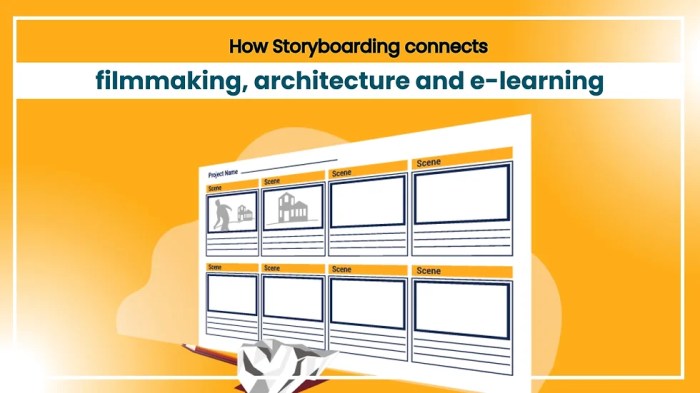
Creating a collaborative storyboard online requires more than just the right tool; it demands effective communication and well-defined processes. Successful online storyboarding hinges on clear roles, proactive conflict resolution, and robust version control. This section Artikels key techniques to ensure a smooth and productive collaborative experience.
Fostering Effective Communication and Feedback
Open and transparent communication is paramount for a successful collaborative storyboard. Effective feedback should be constructive, specific, and timely. Here are five actionable tips:
- Establish clear communication channels: Designate a primary communication platform (e.g., project management software, dedicated chat channel) for all storyboard-related discussions, ensuring everyone stays informed and no crucial information is missed. This prevents confusion caused by using multiple channels simultaneously.
- Use consistent terminology and visual cues: Define key terms and use consistent visual representations (e.g., color-coding, symbols) throughout the storyboard to avoid misinterpretations and ensure everyone is on the same page.
- Provide specific and actionable feedback: Instead of general comments like “this scene is confusing,” offer concrete suggestions such as “Consider adding a visual cue here to clarify the character’s emotion.” This helps streamline revisions.
- Implement regular check-ins: Schedule brief virtual meetings or utilize daily/weekly progress updates to address questions, resolve minor conflicts, and maintain project momentum. This promotes real-time problem-solving.
- Encourage open dialogue and active listening: Create a safe space for team members to express their ideas and concerns without fear of judgment. Actively listen to each other’s perspectives and strive for mutual understanding.
Managing Roles and Responsibilities
Clearly defining roles and responsibilities from the outset prevents confusion and ensures accountability. A well-structured team might include:
- Storyboard Artist(s): Responsible for the visual creation of the storyboard panels.
- Scriptwriter: Provides the narrative text for each panel.
- Project Manager: Oversees the project, manages deadlines, and facilitates communication.
- Reviewer(s): Provides feedback and ensures alignment with project goals.
A project RACI matrix (Responsible, Accountable, Consulted, Informed) can be a valuable tool to visually represent these roles and responsibilities. This ensures clarity and minimizes overlap or gaps in responsibilities. For instance, the project manager is accountable for the overall project success, while the storyboard artist is responsible for creating the visuals.
Resolving Conflicts and Disagreements
Disagreements are inevitable in collaborative projects. A structured approach to conflict resolution is crucial.
- Identify the root cause: Understand the source of the disagreement. Is it a difference in interpretation, a creative vision clash, or a technical issue?
- Facilitate open discussion: Encourage all parties to express their viewpoints calmly and respectfully. Active listening is key to understanding each perspective.
- Explore alternative solutions: Brainstorm multiple solutions to address the conflict. Consider compromises and explore different approaches.
- Document the agreement: Once a resolution is reached, document it clearly and concisely to ensure everyone is aware of the decision and the rationale behind it. This avoids future misunderstandings.
- Mediation if necessary: If the team cannot resolve the conflict independently, consider involving a neutral third party (e.g., a senior team member or external consultant) to mediate the discussion.
Maintaining Version Control
Using a version control system is vital to avoid confusion and ensure everyone works with the most up-to-date storyboard.
- Cloud-based collaboration tools: Tools like Google Slides, Miro, or Figma offer built-in version history and allow multiple users to work simultaneously. These tools automatically track changes and allow for easy rollback to previous versions if necessary.
- Regular saving and backups: Encourage frequent saving of the storyboard to prevent data loss due to technical glitches or accidental deletion. Regular backups to a cloud storage service provide an additional layer of protection.
- Clear naming conventions: Use a consistent naming convention for storyboard files (e.g., “Storyboard_v1.0,” “Storyboard_v1.1”) to easily track different versions and identify the most recent iteration.
- Communication about updates: Notify team members when significant changes are made to the storyboard. This ensures everyone is aware of the latest updates and minimizes confusion.
Optimizing the Storyboard for Online Collaboration

Creating a clear, concise, and easily navigable online storyboard is crucial for effective collaboration. A well-optimized storyboard minimizes confusion, streamlines feedback, and ensures everyone is on the same page, regardless of their location or technical expertise. This section will Artikel key strategies for achieving this.
Clear and concise visuals are paramount in an online storyboard. The goal is to convey information quickly and efficiently. Avoid overly complex imagery or busy layouts. Each panel should focus on a single, easily understandable element of the story. Use simple shapes, lines, and icons to represent actions and characters. Consider using a consistent color palette and style guide to maintain visual harmony. For example, a consistent character design helps viewers quickly identify individuals across multiple panels. Similarly, using a consistent visual style for different locations (e.g., consistent background color schemes) helps viewers understand the scene’s setting.
Effective Annotation and Commenting Strategies
Annotations and comments are essential for providing feedback and facilitating discussion. Tools offering annotation features (such as drawing tools, text boxes, and highlighting) allow for direct feedback on specific aspects of the storyboard. Encourage team members to use descriptive comments, referencing specific panel numbers or elements. For example, instead of writing “This scene needs work,” a more helpful comment would be “Panel 3: The character’s expression seems inconsistent with the dialogue. Perhaps a more surprised expression would be more appropriate?”. This precise feedback is more actionable and productive. Moreover, utilize threaded comments to keep discussions organized and prevent confusion when multiple people provide feedback on the same panel.
Common Pitfalls to Avoid
Several common issues can hinder online storyboard collaboration. Avoiding these pitfalls ensures a smoother workflow.
- Poor File Management: Using multiple versions of the storyboard or relying on individual email exchanges for feedback leads to confusion and version control issues. Employing a centralized platform designed for collaborative work prevents these issues.
- Lack of Clear Communication Protocols: Without established guidelines for providing feedback (e.g., deadlines, preferred communication methods), the process becomes chaotic and inefficient. Establishing clear expectations upfront prevents delays and misunderstandings.
- Inconsistent Style and Formatting: Using different styles and formatting across panels creates visual clutter and makes the storyboard harder to understand. Enforcing a consistent style guide ensures a unified and professional look.
Ensuring Accessibility for All Team Members
Accessibility is crucial for ensuring that all team members can participate effectively, regardless of their technical skills or location. Consider these strategies for inclusive collaboration.
- Using Accessible File Formats: Employing widely compatible file formats (like PDFs or image formats supported by most browsers) ensures that all team members can access the storyboard without difficulty.
- Providing Alternative Text Descriptions: For those using screen readers or having visual impairments, adding alternative text descriptions to images and other visual elements enhances accessibility. These descriptions should concisely describe the image’s content and purpose.
- Offering Multiple Communication Channels: Providing various communication options (e.g., comments within the storyboard software, email, or video conferencing) caters to different preferences and technical capabilities, promoting inclusivity and participation.
Ultimate Conclusion

Mastering online collaborative storyboarding isn’t just about choosing the right software; it’s about fostering a collaborative environment where ideas flow freely, feedback is constructive, and the final product reflects the collective vision. By implementing the five tips Artikeld here, teams can unlock the potential of collaborative storyboarding, creating compelling visuals efficiently and effectively. The result? A streamlined workflow, a stronger final product, and a more enjoyable creative experience for everyone involved.