Mastering the art of storyboarding is crucial for effective visual storytelling. This guide delves into the essential principles of storyboarding, comparing popular software options and emphasizing the importance of efficient workflows. We’ll explore eight key keyboard shortcuts designed to significantly accelerate your editing process, transforming how you create compelling visuals.
From understanding fundamental concepts to leveraging advanced techniques, this resource provides a comprehensive approach to streamlining your storyboarding workflow. We will cover efficient navigation, drawing, and editing techniques, ultimately empowering you to create more dynamic and engaging storyboards in less time.
Understanding Storyboarding Basics and Software
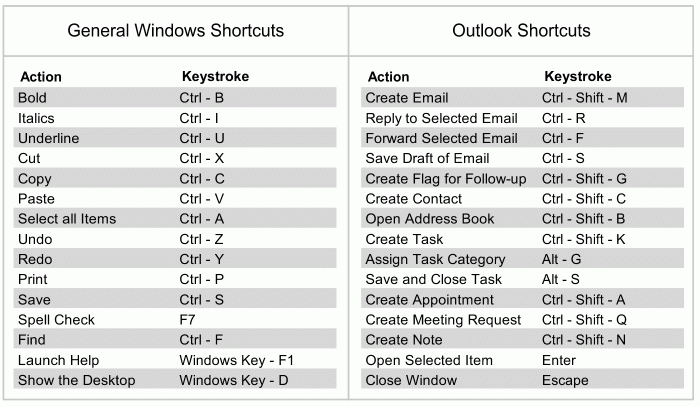
Storyboarding is a crucial pre-production process in filmmaking, animation, and other visual media. It involves creating a series of visual representations – sketches or digital images – that depict the key scenes and shots of a project, outlining the narrative flow and pacing. This process allows creators to visualize their ideas, identify potential problems early on, and effectively communicate their vision to collaborators. Essentially, it’s a blueprint for the final product.
Storyboarding allows filmmakers to plan camera angles, character movements, and scene transitions before committing to expensive and time-consuming filming or animation. It facilitates efficient collaboration between directors, animators, cinematographers, and other team members, ensuring everyone is on the same page regarding the visual storytelling. A well-executed storyboard ensures a smoother production process and a more cohesive final product.
Common Storyboarding Software
Several software applications are specifically designed for creating storyboards, each offering unique features and functionalities. Popular choices include Storyboarder, Adobe Photoshop, and Celtx. Storyboarder is a free, open-source application specifically tailored for storyboarding, emphasizing simplicity and ease of use. Adobe Photoshop, while a powerful image editing software, can also be used for storyboarding, providing advanced features for image manipulation and refinement but with a steeper learning curve. Celtx is a comprehensive production software suite that includes storyboarding tools alongside features for scriptwriting, scheduling, and budgeting.
Sample Storyboard: A Simple Narrative
Let’s illustrate a simple storyboard for a short scene: A character, Alice, discovers a hidden door in her attic.
Panel 1: Wide shot of a dusty attic, showing cluttered furniture and boxes. Alice is in the foreground, looking around curiously. The lighting is dim and slightly eerie.
Panel 2: Medium shot, focusing on Alice as she moves a large, old trunk. Dust motes dance in a single sunbeam.
Panel 3: Close-up on a small, wooden door concealed behind the trunk. A hint of mystery is implied through the shadows around the door.
Panel 4: Medium shot of Alice’s surprised expression as she opens the door. A sliver of darkness is visible beyond the threshold.
This simple example showcases how storyboards can visually convey narrative progression and emotional impact through careful composition and pacing.
Comparison of Storyboarding Software
| Software Name | Features | Pricing | Ease of Use |
|---|---|---|---|
| Storyboarder | Intuitive interface, designed specifically for storyboarding, free and open-source, supports image import and basic drawing tools. | Free | Very Easy |
| Adobe Photoshop | Powerful image editing capabilities, extensive drawing tools, layers and masking features, but not specifically designed for storyboarding. | Subscription-based | Intermediate to Advanced |
| Celtx | Integrated storyboarding tools within a broader production suite, scriptwriting, scheduling, and budgeting features. | Subscription-based (with free plan) | Intermediate |
Exploring Keyboard Shortcuts for Efficiency
Storyboarding software, while visually intuitive, can become significantly more efficient with the strategic use of keyboard shortcuts. Mastering these shortcuts streamlines your workflow, allowing you to focus more on creative storytelling and less on navigating menus. This section details eight essential keyboard shortcuts, categorized for clarity and ease of learning. We’ll cover both Windows and macOS key combinations.
Navigation Shortcuts
Efficient navigation is crucial for smooth storyboarding. These shortcuts allow quick movement between frames and panels, saving valuable time.
- Go to the Next Frame: Windows: Right Arrow Key; macOS: Right Arrow Key. This simple shortcut allows for seamless progression through your storyboard sequence.
- Go to the Previous Frame: Windows: Left Arrow Key; macOS: Left Arrow Key. Moving backward through your frames is equally important for reviewing and editing.
- Zoom In: Windows: Ctrl + Plus (+); macOS: Command + Plus (+). This enables detailed inspection of your artwork and precise editing.
- Zoom Out: Windows: Ctrl + Minus (-); macOS: Command + Minus (-). Provides a broader perspective of your storyboard, useful for assessing overall composition.
Drawing and Editing Shortcuts
These shortcuts accelerate the drawing and modification of your storyboard panels, enabling faster iteration and refinement.
- Undo: Windows: Ctrl + Z; macOS: Command + Z. A fundamental shortcut for correcting mistakes and experimenting freely.
- Redo: Windows: Ctrl + Y; macOS: Command + Shift + Z. Reverses the undo action, allowing for flexible revision of your work.
- Select Tool: This shortcut typically varies depending on the software, but often involves a single key press (e.g., ‘V’ for ‘Selection Tool’ in some applications). This quickly activates the primary selection tool for modifying elements within your frames.
- Create New Frame: Similar to the Select Tool, this shortcut varies by software but usually involves a combination of keys (e.g., ‘Shift + N’ in some programs). This shortcut allows quick addition of frames to your storyboard.
Mastering Shortcuts and Streamlining Workflow
Consistent practice is key to integrating these shortcuts into your workflow. Try dedicating a short period each day to consciously using them. Start by focusing on just a few, mastering them before adding more. Over time, these shortcuts will become second nature, significantly accelerating your storyboarding process. Consider creating a physical cheat sheet with the key combinations for quick reference, especially in the initial learning phase. Remember, the goal is to create a natural, intuitive workflow where your hands remain on the keyboard as much as possible.
Advanced Storyboarding Techniques and Workflow Optimization
Mastering basic storyboarding is only the first step. To truly elevate your storytelling, you need to incorporate advanced techniques and streamline your workflow. This section explores strategies for creating dynamic and engaging storyboards, optimizing your workflow using keyboard shortcuts and other tools, and effectively communicating complex scenes.
This section delves into advanced techniques to enhance your storyboards and boost your productivity. We’ll cover techniques for handling complex scenes, optimizing your workflow for efficiency, and collaborating effectively.
Camera Angles and Perspectives
Utilizing diverse camera angles and perspectives is crucial for creating dynamic and engaging storyboards. Different angles convey distinct emotions and perspectives, adding depth and visual interest to your narrative. For instance, a low-angle shot can make a character appear powerful and imposing, while a high-angle shot might portray vulnerability or insignificance. Similarly, over-the-shoulder shots create intimacy, while establishing shots provide context and setting. Experimenting with these variations will significantly enrich your storytelling. Consider how the chosen angle influences the viewer’s emotional response and the overall narrative impact. A well-planned sequence of camera angles can dramatically improve the pacing and storytelling.
Workflow Optimization with Keyboard Shortcuts and Tools
Integrating keyboard shortcuts with other storyboarding tools dramatically improves efficiency. For example, using keyboard shortcuts for quick selection, copy/paste, and layer manipulation, combined with the use of templates or pre-made assets, significantly reduces the time spent on repetitive tasks. Employing layer organization, color-coding, and naming conventions improves the clarity and manageability of your storyboard files. This organized approach simplifies collaboration and makes revision much simpler. Consider using cloud storage and version control systems for seamless collaboration with your team. This ensures everyone has access to the most up-to-date version and prevents conflicts.
Communicating Complex Scenes and Actions
Storyboarding complex scenes requires a strategic approach. Break down intricate actions into smaller, manageable sequences, using clear and concise visual representations. Employ annotations to clarify details, such as character emotions, sound effects, or camera movements. Consider using different panel sizes and layouts to emphasize key moments or transitions. A well-structured storyboard, even for complex scenes, should be easy to follow and understand. For example, depicting a fight scene might require multiple panels showing different angles and stages of the action, with clear annotations indicating the direction of movement, impact, and character expressions.
Optimizing Storyboarding Workflow: A Step-by-Step Guide
Efficient workflow is essential for successful storyboarding. A structured approach ensures clarity, reduces errors, and fosters collaboration.
- Project Setup: Begin by clearly defining the project scope, including the target audience, the story’s narrative, and the desired visual style.
- Template Creation: Design a consistent template for your storyboards, including panel sizes, layouts, and annotation styles. This ensures uniformity throughout the project.
- Asset Management: Organize your assets (characters, backgrounds, props) in a structured manner, using clear naming conventions and folders. This simplifies asset retrieval and prevents duplication.
- Storyboard Creation: Break down the story into scenes, then further into individual panels. Use a consistent approach to panel layouts and annotations.
- Revision and Feedback: Incorporate feedback efficiently. Use version control to track changes and facilitate collaboration.
- Finalization and Export: Once the storyboard is finalized, export it in a suitable format for review and distribution.
Final Wrap-Up
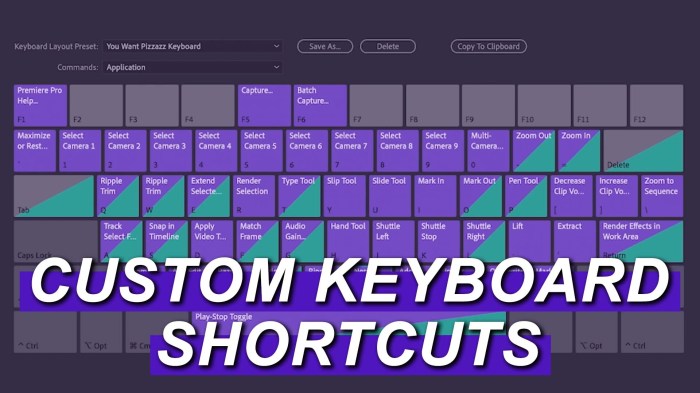
By integrating the eight keyboard shortcuts discussed into your workflow and applying the advanced techniques Artikeld, you’ll dramatically improve your storyboarding efficiency. This guide equips you with the knowledge and practical skills to create professional-quality storyboards swiftly and effectively, enhancing your visual storytelling capabilities and saving valuable time.