Storyboards, often associated with filmmaking, offer a surprisingly powerful tool for audience testing in product development and marketing. By visually depicting user interactions and emotional responses, storyboards provide invaluable insights before investing significant resources in design and development. This allows for iterative improvements based on user feedback, leading to more effective and engaging products and campaigns.
This exploration delves into five key methods of leveraging storyboards to understand your target audience better. We’ll examine how storyboards can help identify unmet needs, evaluate user engagement and navigation, gauge emotional responses, and ultimately, refine your product or service for optimal impact. The process is surprisingly straightforward and offers significant returns on investment in terms of time and resources.
Identifying Target Audience Needs Through Storyboards
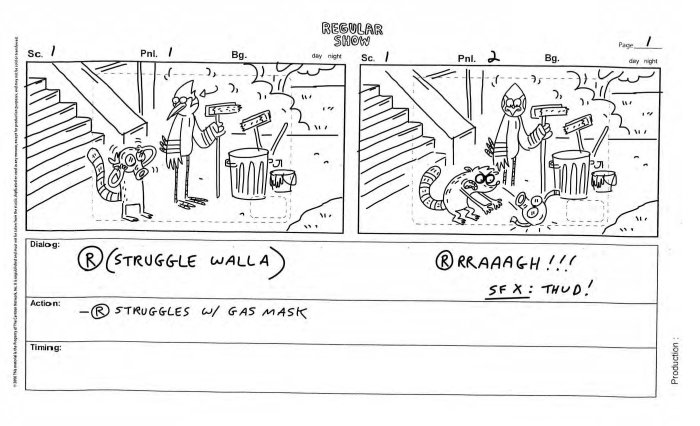
Storyboards are a powerful tool for understanding how your target audience interacts with your product. By visualizing user journeys and potential pain points, you can gain valuable insights that inform design decisions and ultimately lead to a more user-friendly and successful product. This allows for iterative improvements before significant resources are committed to development.
Using storyboards for audience testing involves creating visual representations of user interactions, allowing for the identification of areas needing improvement and a deeper understanding of user needs. This process is particularly beneficial during the early stages of product development, as it facilitates cost-effective adjustments based on user feedback.
Storyboard Depicting User Struggles
Imagine a new mobile banking app. A storyboard depicting a user struggle might show a series of panels. Panel 1: A frustrated user staring at their phone screen, displaying a confusing error message about insufficient funds. Panel 2: The user tries multiple login attempts, each unsuccessful. Panel 3: The user frantically searches online for help, but finds the app’s FAQ unhelpful. Panel 4: The user finally calls customer support, but experiences a long wait time. This visual narrative clearly illustrates the user’s frustration and identifies key areas for improvement within the app’s design and customer support.
Storyboards Showcasing Different User Personas
To illustrate diverse user interactions, create storyboards for different user personas. For example, a “tech-savvy” user might navigate the banking app with ease, while a “tech-averse” user might struggle with the app’s interface. Comparing their reactions in the storyboards highlights the need for intuitive design and potentially different levels of support for varying user skill sets. A tech-savvy user might quickly complete a transaction with minimal effort, indicated by a satisfied expression in the storyboard. Conversely, the tech-averse user might experience confusion and frustration, resulting in a negative experience that needs addressing through simplified interface design or improved tutorials.
Storyboards Illustrating Alternative Solutions
Let’s consider three alternative designs for the mobile banking app’s insufficient funds message. Storyboard A: A simple, clear message stating “Insufficient funds. Please add funds to your account.” Storyboard B: The same message, but with a direct link to the “Add Funds” section of the app. Storyboard C: The message includes a suggested amount based on the user’s typical spending habits, along with the “Add Funds” link. Storyboard A is simple but lacks guidance. Storyboard B is better, providing a clear path to resolution. Storyboard C is the most user-friendly, offering personalized assistance. The strengths and weaknesses of each approach are readily apparent through the visual comparison.
Storyboard Analysis Table
Organizing the observations from the storyboards into a table provides a structured way to analyze user interactions and identify areas for improvement. This allows for a more objective assessment of the user experience and facilitates collaborative decision-making.
| Scene | User Action | User Emotion | Feedback |
|---|---|---|---|
| Attempting to transfer funds | Clicks “Transfer Funds,” enters recipient details, and amount. | Anxious, hopeful | Error message: “Insufficient funds.” |
| Viewing error message | Reads error message, then checks account balance. | Frustrated, confused | Account balance is low. |
| Adding funds | Navigates to “Add Funds” section, enters card details. | Relieved, confident | Successful fund addition confirmation. |
| Completing transfer | Re-attempts the fund transfer. | Satisfied, pleased | Successful transfer confirmation. |
Testing User Engagement and Navigation with Storyboards
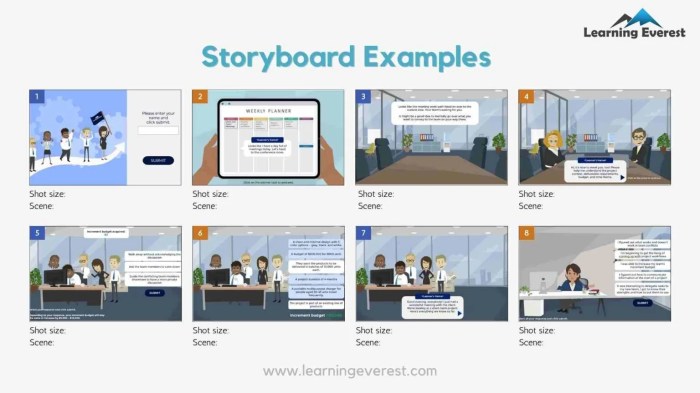
Storyboards are invaluable tools for evaluating user engagement and navigation before a website or application is fully developed. By visualizing the user journey, designers can identify potential usability issues and improve the overall user experience. This process allows for iterative design improvements based on predicted user behavior, ultimately leading to a more efficient and enjoyable product.
User Journey Depiction Through Storyboards
A storyboard depicting a user’s journey should be a sequential representation of the user’s interaction with the product. For example, consider a user attempting to purchase a product online. The storyboard would begin with the user landing on the homepage, then progressing through browsing product categories, selecting a specific item, adding it to a cart, proceeding to checkout, entering payment information, and finally receiving an order confirmation. Each panel in the storyboard would depict a screen or interface, with annotations describing the user’s actions and the system’s responses at each step. This detailed visual representation allows for easy identification of potential friction points in the user flow.
Comparison of Intuitive and Frustrating User Experiences
Two storyboards, one illustrating an intuitive experience and the other a frustrating one, highlight the impact of design choices. The intuitive storyboard might show a clean, uncluttered interface with clear calls to action, logical navigation, and immediate feedback to user inputs. The frustrating storyboard, conversely, could depict a cluttered interface with confusing navigation, unclear instructions, and slow loading times, potentially leading to user abandonment. Comparing these two storyboards reveals the importance of streamlined design, efficient information architecture, and responsive feedback mechanisms in creating a positive user experience. For instance, a poorly designed search function could be depicted in the frustrating storyboard, leading to the user being unable to find what they are looking for, whereas a well-designed search function in the intuitive storyboard would quickly lead the user to the desired product.
Identifying Pain Points in a Key Task
A storyboard focusing on a specific key task, such as creating an account or completing a purchase, allows for a granular analysis of potential pain points. For example, a storyboard showing the account creation process might reveal that the form is too long, requiring users to input unnecessary information, or that error messages are unclear and unhelpful. Identifying these pain points early in the design process enables designers to make targeted improvements, resulting in a more user-friendly and efficient workflow. This detailed, step-by-step visualization helps anticipate and mitigate potential frustrations users might experience.
Analysis of Different Navigation Options
This storyboard would showcase various navigation approaches, such as a traditional menu, a hamburger menu, or a search-based navigation system. Each option’s pros and cons can be Artikeld as follows:
- Traditional Menu:
- Pros: Easy to understand, familiar to most users, allows for clear categorization of content.
- Cons: Can take up significant screen real estate, may not be suitable for all screen sizes.
- Hamburger Menu:
- Pros: Space-saving, clean interface, suitable for mobile devices.
- Cons: Can be less discoverable, requires an extra tap to access navigation, may not be intuitive for all users.
- Search-Based Navigation:
- Pros: Allows users to quickly find specific content, ideal for large websites with extensive content.
- Cons: Requires users to know exactly what they are looking for, may not be suitable for users who prefer browsing.
By comparing these options visually and analyzing their advantages and disadvantages, designers can make informed decisions about the most effective navigation strategy for their product.
Evaluating Emotional Response and Brand Perception with Storyboards
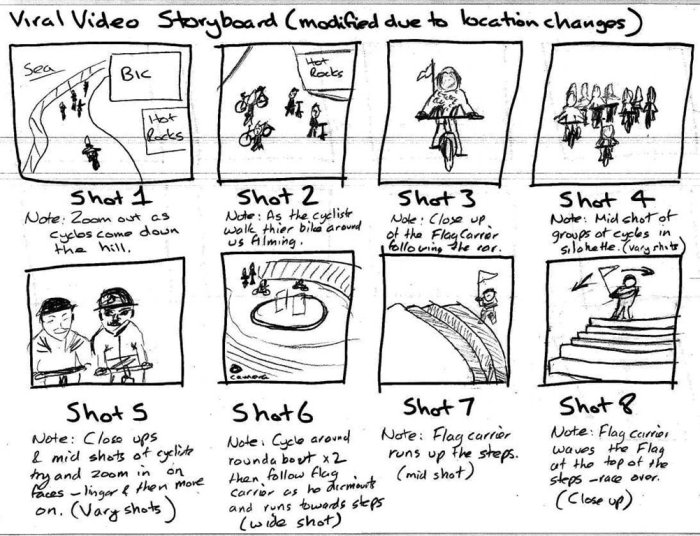
Storyboards are invaluable tools not just for outlining user journeys but also for understanding the emotional impact of your product and brand. By visualizing user interactions and responses, you can gain crucial insights into how your brand is perceived and how your product makes users feel. This allows for iterative improvements to design and marketing strategies, ultimately leading to a more impactful and resonant user experience.
Storyboards allow for a pre-emptive assessment of emotional responses, enabling adjustments before significant resources are invested in development or marketing campaigns. This proactive approach minimizes the risk of negative emotional responses impacting user engagement and brand loyalty.
Storyboard Depicting User Emotional Response to Branding
This storyboard focuses on a new line of sustainable athletic wear.
Scene 1: A person scrolls through social media, encountering an advertisement featuring vibrant, natural imagery and models diverse in age and body type wearing the athletic wear. Emotion: Intrigued and positive. Visual elements: Bright, earthy tones; natural lighting; smiling, diverse models.
Scene 2: The person clicks on the advertisement and is taken to the brand’s website, which features clean, minimalist design and emphasizes the eco-friendly materials and ethical production. Emotion: Trust and confidence. Visual elements: Simple layout, use of recycled paper texture in background, clear information about sustainability initiatives.
Scene 3: The person purchases an item and receives a beautifully packaged order, containing a handwritten thank you note and information on the brand’s commitment to environmental responsibility. Emotion: Joy and appreciation. Visual elements: Recycled packaging, handwritten note, imagery of lush forests.
Storyboard Showing How a Product Makes Users Feel
This storyboard illustrates the emotional journey of a user using a mindfulness app.
Scene 1: The user opens the app and is greeted by a calming visual of a sunrise and gentle, ambient music. Emotion: Relaxation and peace. Visual elements: Soft, pastel colors; a minimalist design; a subtle animation of a sunrise.
Scene 2: The user completes a guided meditation session. Emotion: Calmness and centeredness. Visual elements: Visualizations of nature scenes, calming animations.
Scene 3: The user reflects on their experience in a journal feature within the app, feeling a sense of accomplishment and self-awareness. Emotion: Empowerment and self-confidence. Visual elements: Clean, organized journal interface, positive affirmations.
Storyboard Comparing Emotional Impact of Two Marketing Approaches
This storyboard compares two different marketing campaigns for a new productivity software.
Campaign A: Focuses on sleek visuals, highlighting the software’s advanced features and efficiency gains. Emotion: Impressed but possibly overwhelmed. Visual elements: Dark, sophisticated color palette; complex diagrams showcasing software features; fast-paced editing.
Campaign B: Emphasizes the software’s ease of use and stress reduction benefits, featuring calm visuals and relatable scenarios. Emotion: Relaxed and confident. Visual elements: Bright, airy color palette; simple illustrations; slow-paced editing, showcasing ease of use. The rationale for choosing these visuals is to test whether a more approachable and less intimidating marketing campaign leads to higher user engagement and a more positive emotional response.
Storyboard Showing User Reaction to a Specific Feature
This storyboard depicts a user’s reaction to the “smart reply” feature in an email client.
Scene 1: The user receives an email requiring a quick response. Emotion: Slightly stressed due to time constraints. Visual elements: Small, frantic movements; cluttered inbox; stressed facial expression.
Scene 2: The user utilizes the smart reply feature, generating several concise response options. Emotion: Relief and ease. Visual elements: A clear and concise interface; a subtle animation highlighting the ease of use; relaxed facial expression.
Scene 3: The user selects a suitable reply and sends it. Emotion: Satisfaction and confidence. Visual elements: A confirmation message; a clean inbox; a confident facial expression.
Wrap-Up
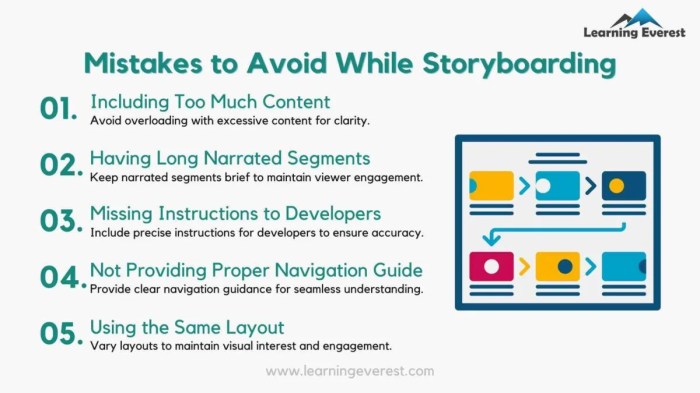
Incorporating storyboarding into your audience testing strategy provides a cost-effective and insightful approach to understanding user behavior and preferences. By visualizing user journeys and emotional responses, you can identify potential pain points, refine designs, and ultimately create more successful products and marketing campaigns. The iterative nature of storyboard testing allows for continuous improvement, ensuring your final product resonates deeply with your target audience.