Mastering the art of storyboarding hinges not only on creative vision but also on efficient asset management. This guide delves into the practical aspects of organizing your storyboard elements, transforming the process from chaotic to streamlined. We’ll explore digital and traditional approaches, various layout techniques, and robust organizational strategies to ensure your projects remain manageable and collaborative, no matter their scale.
From selecting the right software and establishing clear naming conventions to implementing version control and leveraging cloud storage, we’ll equip you with the tools and knowledge necessary to create a smooth and productive workflow. Whether you’re a seasoned professional or just starting out, this comprehensive guide will enhance your storyboarding skills and help you bring your creative visions to life efficiently.
Storyboard Software & Tools
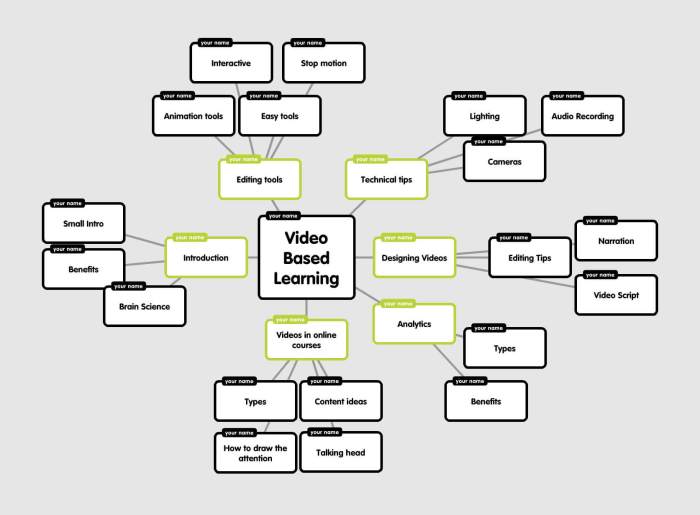
Choosing the right storyboard software can significantly impact your workflow and the overall quality of your final product. The best option depends on your specific needs, budget, and technical skills. This section explores various software options, highlighting their strengths and weaknesses to aid in your selection process.
Comparison of Storyboard Software
Several software options cater to storyboarding needs, each offering a unique set of features and pricing models. Below is a comparison of three popular choices: Storyboarder, Celtx, and Adobe Photoshop.
| Software Name | Key Features | Pricing | Pros/Cons |
|---|---|---|---|
| Storyboarder | Intuitive interface, focus on visual storytelling, free and open-source, panel resizing and layout tools, character and prop import, export options for various formats. | Free (Open Source) | Pros: Easy to learn, free to use, strong community support. Cons: Limited advanced features compared to paid options, fewer integration options. |
| Celtx | Screenwriting, storyboarding, scheduling, budgeting tools, collaboration features, cloud storage, various export options (PDF, image sequences). | Free plan with limitations, paid plans with enhanced features. | Pros: Comprehensive suite of tools for film production, strong collaboration features. Cons: Steeper learning curve than Storyboarder, free plan has significant limitations. |
| Adobe Photoshop | Powerful image editing, layers, advanced drawing tools, extensive customization options, industry-standard software, vast plugin ecosystem. | Subscription-based (part of Adobe Creative Cloud) | Pros: Unmatched image manipulation capabilities, highly versatile. Cons: Expensive, complex interface, not specifically designed for storyboarding, steeper learning curve. |
Creating a Storyboard with a Free Online Tool
This example uses a hypothetical free online tool (features are illustrative and may not reflect any specific software). The process involves creating a simple storyboard for a short scene: a person walking their dog in a park.
Step 1: Panel Creation: The user creates four panels using the tool’s interface. Each panel is set to a consistent size and aspect ratio (e.g., 16:9 for widescreen).
Step 2: Image Creation/Import: For each panel, the user draws or imports images.
* Panel 1: Shows a person (stick figure) and a dog (simple sketch) standing at the entrance of a park. The park is represented by simple green shapes and a few trees (also simplified shapes). The sky is a light blue.
* Panel 2: The person and dog are shown walking down a path in the park. The path is a curved brown line. A few more trees are added to the background, and a bench is sketched in the distance.
* Panel 3: The person and dog are now near a pond. The pond is represented by a blue oval shape, and a few birds (small dots) are shown flying above it.
* Panel 4: The person and dog are leaving the park. The entrance is visible in the background. The sky is slightly darker than in panel 1, suggesting the passage of time.
Step 3: Annotation: The user adds simple text annotations to each panel, describing the action and dialogue (e.g., “Person and dog enter park,” “Walking down path,” “Dog drinks from pond,” “Leaving the park”).
Digital vs. Traditional Storyboarding
Both digital and traditional storyboarding methods offer unique advantages and disadvantages. The best approach often depends on individual preferences and project requirements.
Benefits of Digital Storyboarding
- Easy revision and editing: Changes can be made quickly and easily without the need to redraw entire panels.
- Enhanced collaboration: Multiple users can work on the same storyboard simultaneously.
- Integration with other software: Digital storyboards can be easily integrated into video editing and animation software.
- Clean and professional presentation: Digital storyboards often look more polished and professional than hand-drawn ones.
Drawbacks of Digital Storyboarding
- Requires technical skills and software: Users need to be comfortable with the chosen software and have access to a computer.
- Can be time-consuming to learn: Mastering digital storyboarding software can take time and effort.
- Potential for technical issues: Software glitches or hardware malfunctions can disrupt the workflow.
- Cost of software and hardware: Digital storyboarding often requires an investment in software and equipment.
Storyboard Structure & Layout Techniques
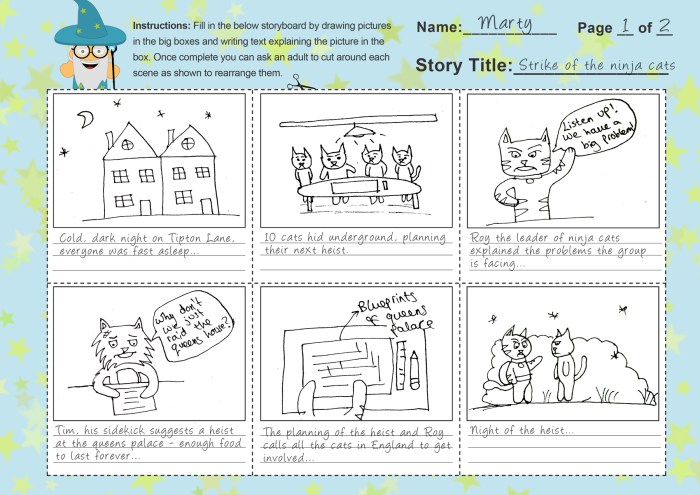
Effective storyboard structure and layout are crucial for clear communication and efficient production. A well-organized storyboard allows for easy visualization of the narrative flow, shot composition, and overall pacing of your project. Choosing the right panel layout and employing strong visual hierarchy within each panel are key to creating a compelling and understandable storyboard.
Storyboard layout techniques go beyond simply arranging panels in a sequence. They involve strategic choices about panel size, shape, and arrangement to emphasize specific actions, emotions, or narrative points. Understanding these techniques allows for greater control over the visual storytelling process, enabling you to effectively communicate your vision to collaborators and ultimately enhance the final product.
Storyboard Panel Layouts and Applications
Different panel layouts serve distinct purposes in storytelling. The choice of layout depends on the scene’s complexity, the desired emphasis, and the overall narrative style. Below are examples of common panel layouts and their typical applications.
| Layout | Description | Application Example | Visual Effect |
|---|---|---|---|
| Single Panel | A single panel showing a complete scene or action. | Establishing shot of a bustling city street. | Provides a clear, concise visual; good for establishing setting or showing a singular important action. |
| Multi-Panel (3-panel horizontal) | Three panels arranged horizontally, showing a sequence of actions or a progression of events. | A character walking down a street, noticing something, then reacting. | Illustrates a clear sequence of events; emphasizes the progression of action. |
| Multi-Panel (2-panel vertical) | Two panels stacked vertically, often used to show contrasting perspectives or a before-and-after scenario. | A character’s expression before and after receiving good news. | Highlights contrast or change; effective for showing emotional shifts or juxtapositions. |
| Split Screen | Two or more scenes happening simultaneously are shown side-by-side within a single panel. | A phone conversation shown on one side while a character’s reaction is shown on the other. | Illustrates parallel action or contrasting perspectives; creates a sense of simultaneity. |
Organizing a Storyboard Scene with Varied Panel Layouts
Let’s consider a short scene: A character (Sarah) is waiting anxiously for a phone call. The scene will utilize different panel layouts to enhance storytelling.
- Panel 1 (Single Panel): Wide shot establishing Sarah sitting alone in a dimly lit room, phone in hand. Purpose: Sets the scene and establishes the character’s mood.
- Panel 2 (Multi-Panel – 3 horizontal): Shows a close-up of Sarah’s increasingly anxious facial expressions as the phone rings, her picking it up, and then her initial reaction to the voice on the other end. Purpose: Show progression of emotion and action.
- Panel 3 (Split Screen): Shows Sarah’s joyful reaction on one side and a visual representation (perhaps a simple graphic) of the good news she received on the other. Purpose: Emphasizes both the visual and emotional impact of the news.
Visual Hierarchy and Composition within Storyboard Panels
Effective visual hierarchy and composition within each panel guide the viewer’s eye and enhance the storytelling impact. This involves strategic placement of elements to create focus and visual interest.
Techniques like the rule of thirds (placing key elements off-center) and using leading lines (lines within the image that draw the eye to a focal point) can significantly improve the visual appeal and clarity of each panel. For example, placing the character slightly off-center according to the rule of thirds, rather than directly in the middle, can create a more visually engaging composition. Similarly, using a road leading towards a distant horizon as a leading line can guide the viewer’s eye towards the character’s destination, building anticipation.
Storyboard Asset Management & Organization
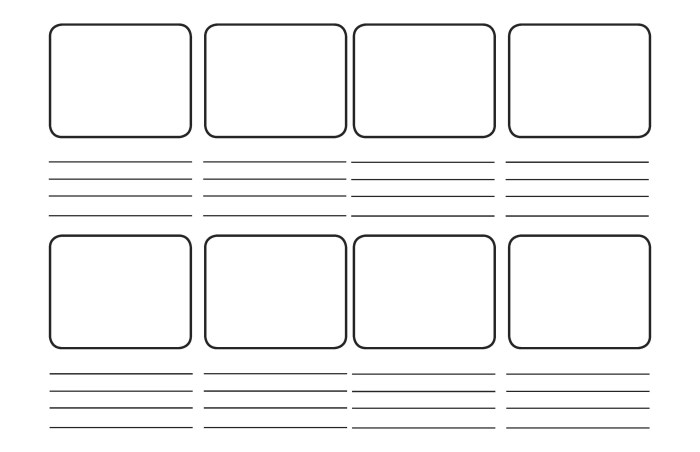
Efficiently managing your storyboard assets is crucial for maintaining project clarity, facilitating collaboration, and preventing the loss of valuable work. A well-organized system ensures easy access to all your materials, streamlining the workflow and reducing frustration. This section will explore practical strategies for organizing your images, scripts, character designs, and more, using both cloud storage and local file management techniques.
Effective asset management hinges on a robust system for organizing and retrieving your files. This involves establishing clear naming conventions and a logical file structure. Using a consistent system makes it much easier to find specific assets quickly, whether you’re working alone or as part of a larger team. This is particularly important as projects grow in size and complexity.
Cloud Storage and File Management Systems for Storyboard Assets
Cloud storage services like Google Drive, Dropbox, or iCloud offer valuable tools for managing storyboard assets. These platforms provide centralized storage, version control, and collaborative features. Consider creating a folder structure within your chosen cloud service that mirrors your project’s organization. For instance, you might have a main project folder containing subfolders for “Characters,” “Scenes,” “Scripts,” and “Revisions.” This allows for efficient sorting and retrieval of specific assets. Local file management systems, like those found on your computer, should complement cloud storage, providing an offline backup and a readily accessible workspace. Regular synchronization between local and cloud storage is essential to prevent data loss.
Best Practices for Naming Conventions and File Organization
A clear and consistent naming convention is paramount for efficient asset retrieval and team collaboration. Here are some best practices to follow:
- Use descriptive names: Instead of “image1.jpg,” use “Scene_03_Hero_Entrance.jpg”.
- Employ consistent numbering: Maintain a sequential numbering system for scenes or assets within a category (e.g., Character_01, Character_02).
- Include relevant s: Incorporate s that reflect the content of the asset, such as character names, scene locations, or action descriptions.
- Use underscores instead of spaces: This prevents file path issues and improves readability.
- Maintain a consistent file extension: Stick to standard image formats like JPEG or PNG for visuals and PDF for scripts.
Implementing these practices ensures that your assets are easily identifiable and searchable, significantly reducing the time spent searching for specific files.
Version Control and Backup System for Storyboard Assets
Data loss is a serious threat to any project. A robust version control and backup system is essential to protect your work. Here’s a step-by-step guide to implementing such a system:
- Regularly save your work: Develop a habit of saving your progress frequently, ideally every 15-30 minutes.
- Utilize version history features: Many applications and cloud services offer version history, allowing you to revert to previous versions of your files if necessary.
- Implement a cloud-based backup solution: Regularly back up your project files to a cloud storage service. Consider using a service with version history and file recovery options.
- Create local backups: In addition to cloud backups, create regular local backups on an external hard drive or USB drive. Store this backup in a separate location to protect against physical damage or theft.
- Consider using a version control system (VCS): For larger projects or collaborative teams, a VCS like Git can provide detailed version control and facilitate collaboration.
This layered approach ensures redundancy and minimizes the risk of data loss. By consistently following these steps, you can safeguard your valuable storyboard assets and maintain project continuity.
Epilogue
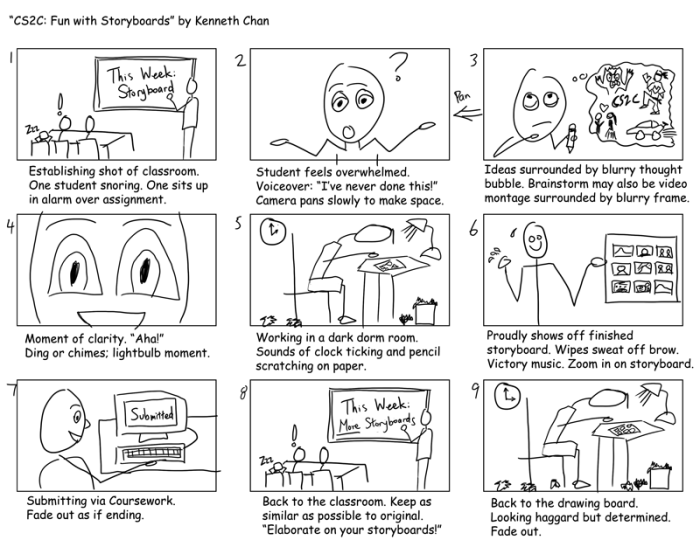
Efficiently managing your storyboard assets is crucial for successful project completion. By implementing the techniques discussed – from choosing the right software and employing effective file naming conventions to utilizing cloud storage and version control – you can significantly improve your workflow. This results in a more organized, collaborative, and ultimately more enjoyable storyboarding experience, allowing you to focus on the creative aspects of your projects without the burden of disorganization.